
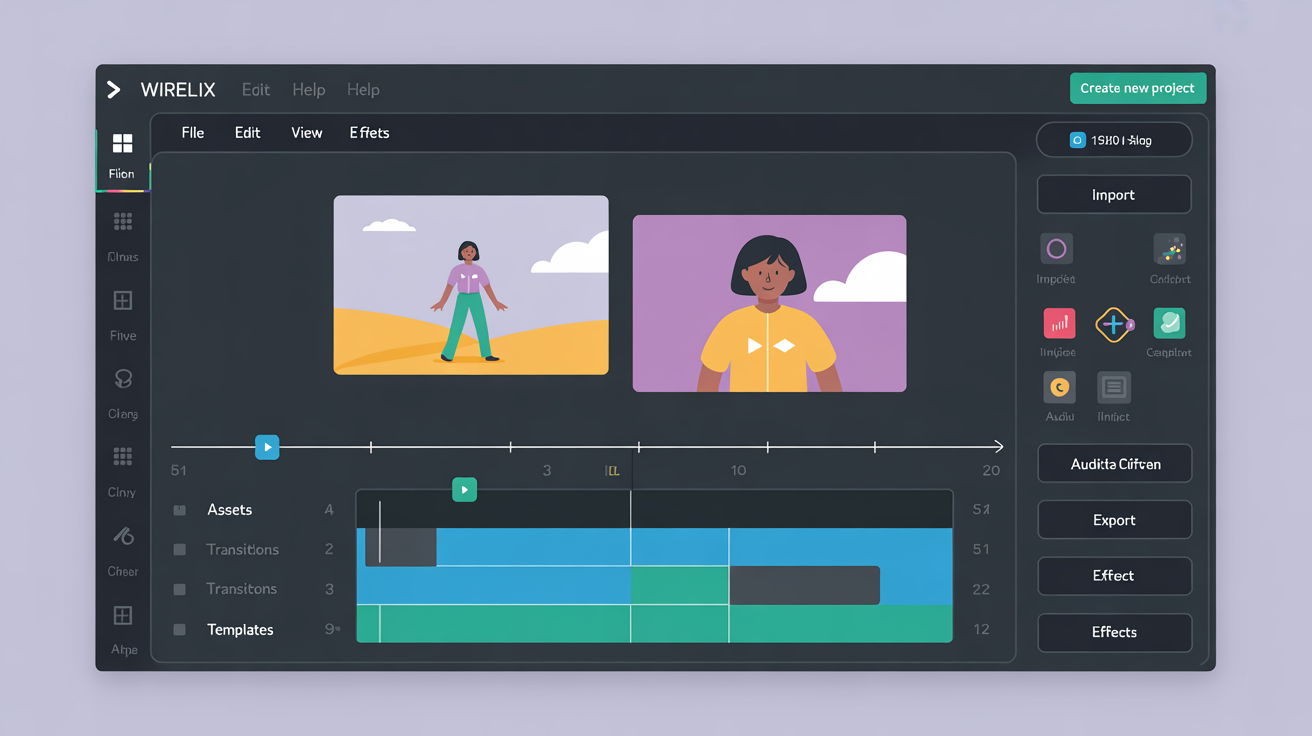
Step 1: Getting to Know the Automation Workspace
Wirelix opens with a clean workspace that feels like your favorite kitchen counter, ready for fresh ideas. Start by launching the app on your Windows or Linux machine and navigate to the workflows panel on the left sidebar. Here you see all your saved flows laid out in a simple grid that highlights recent activity with soft shadows for depth.
Step 2: Creating Your First Automation
Click the new flow button to begin. Name it something inviting like Morning Coffee Routine. Choose triggers from the right sidebar such as time based or file change events. Add an action like running a script or moving files into a folder. Test it right away to see the flow in action with a subtle animation confirming success.
Step 3: Adding Conditions and Loops
Build smarter flows by inserting conditions. Use the if then blocks to check file types before processing. For repeated tasks wrap actions in a loop section that runs a set number of times or until a goal is met. This keeps everything efficient without extra effort.
- Drag a condition block onto the canvas
- Set rules like file size under a certain limit
- Connect it to the next step with a simple line
Step 4: Integrating with Everyday Tools
Wirelix plays nicely with apps you already use. Connect to email or calendar tools through built in modules. Save time by having new documents automatically tagged and sorted. The integrations panel shows available options in a clean list for quick selection.
Step 5: Testing and Refining Your Workflow
Run a test pass using sample data to catch any small hiccups. Watch the progress bar move across the screen as each step completes. Adjust timings or add pauses if needed so the flow feels natural like a well timed recipe.
Step 6: Saving and Sharing Flows
Once happy with the setup save the workflow to your library. Export it as a package for use on another device. This lets you carry your favorite routines wherever you go without starting from scratch each time.
Step 7: Monitoring and Adjusting Over Time
Check the activity log in the dashboard to see how flows perform day after day. Spot patterns and tweak settings for even better results. A quick edit keeps things fresh and responsive to your changing needs.
Step 8: Advanced Tips for Complex Projects
For bigger tasks layer multiple flows together. Use variables to pass data between automations and keep code snippets in the editor for custom logic. Examples include if file.endswith('.jpg') to handle images differently. This approach brings professional polish to home style setups.