
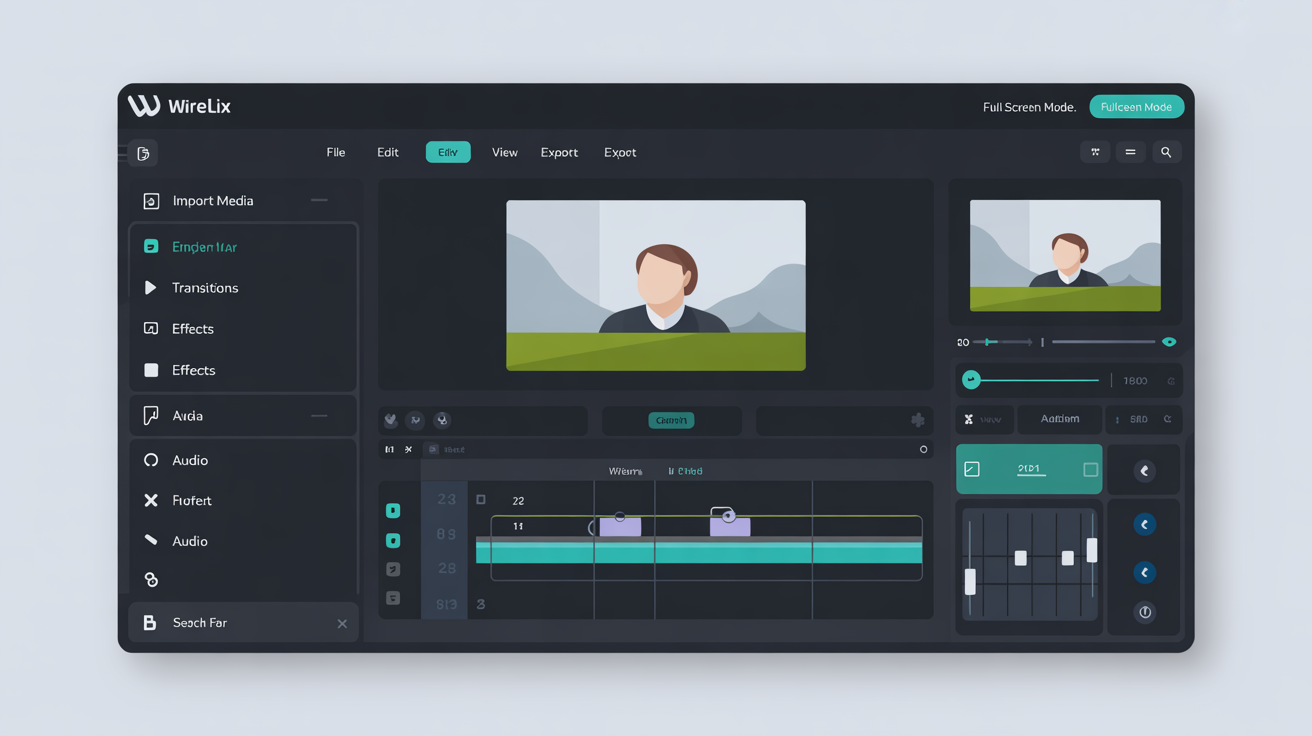
Step 1: Getting Comfortable with Basic Shortcuts
Wirelix shines when you use keyboard shortcuts to handle everyday tasks without reaching for the mouse. Think of it like reaching into a well stocked pantry where everything sits ready at your fingertips. Start by opening the app and pressing the question mark key to view the full list of available options right on screen. This simple action reveals dozens of ways to move faster through your work. The home style approach here means taking small steps that build into habits you will enjoy every day.
Try pressing control plus s to save your current project. On linux the same action works with the same keys for consistency across platforms. Notice how the screen updates instantly with a soft confirmation that feels reassuring. Add control plus z to undo the last change and watch your layout return to its previous state without any fuss. These basics set the foundation for everything that follows.
Step 2: Navigation Shortcuts for Smooth Movement
Once the basics feel natural move on to navigation that keeps your workflow flowing like fresh ingredients coming together in a favorite recipe. Press control plus tab to switch between open panels in an instant. This shortcut saves time when you need to check details in one area then return to the main view. On both windows and linux it responds the same way so you never have to adjust your muscle memory.
Use the arrow keys combined with shift to select multiple items at once. The visual feedback appears with clean highlights that make it easy to see what you have chosen. Follow up with control plus c to copy and control plus v to paste within the same project or across different ones. Each action feels light and responsive keeping your momentum going.
Step 3: Advanced Editing Shortcuts
Build on your skills with editing shortcuts that add precision to your projects. Control plus f opens a search field where you can type exactly what you need and jump straight to it. This proves especially useful in larger files where scrolling would take longer. Combine it with control plus g to move to the next match without extra clicks.
Try alt plus enter to open detailed properties for any selected element. The panel slides in gently with all the options laid out clearly. Experiment with control plus shift plus d to duplicate items quickly and rearrange them using the arrow keys for fine tuning. These commands turn repetitive work into quick enjoyable steps.
Step 4: Customizing and Remembering Shortcuts
Wirelix allows you to review and adjust shortcuts through the settings panel accessed by control plus comma. Look over the list and change any combination that feels more natural to your hands. Saving your changes happens automatically so your personal setup stays ready every time you launch the app.
Practice a few shortcuts each session until they become second nature. Keep a small note nearby at first if it helps but soon you will find yourself moving through tasks with ease. The result is a workspace that feels welcoming and productive day after day.
Ctrl + SSave current workCtrl + ZUndo last actionCtrl + TabSwitch panelsCtrl + FSearch within projectAlt + EnterView properties
Continue exploring each new shortcut at your own pace. Before long the entire set will support a fresh and satisfying way to complete your projects on windows or linux alike.